Settings Tab
 The plumbing. A
Common strip that applies everywhere, then three sub-tabs: AI Services, Audio, and
Push To Talk. The update button sits in the footer — App is Up to Date or Update
Available.
The plumbing. A
Common strip that applies everywhere, then three sub-tabs: AI Services, Audio, and
Push To Talk. The update button sits in the footer — App is Up to Date or Update
Available.
Common
Shown above the sub-tabs, because it applies to all of them.
Language — the language of both your voice commands and the app's own interface. Choosing one re-renders the whole window immediately and Vega announces the change out loud.
Supported: English, German, French, Spanish, Italian, Portuguese, Brazilian Portuguese.
Journal Directory — where Elite Dangerous writes its journal files. Optional: leave it blank and the standard location for your platform is used. This is how Elite Intel knows what is happening around your ship, so if it is wrong the app is effectively blind, and it will say so at startup. A folder that cannot be used is refused and the previous setting is kept.
AI Services
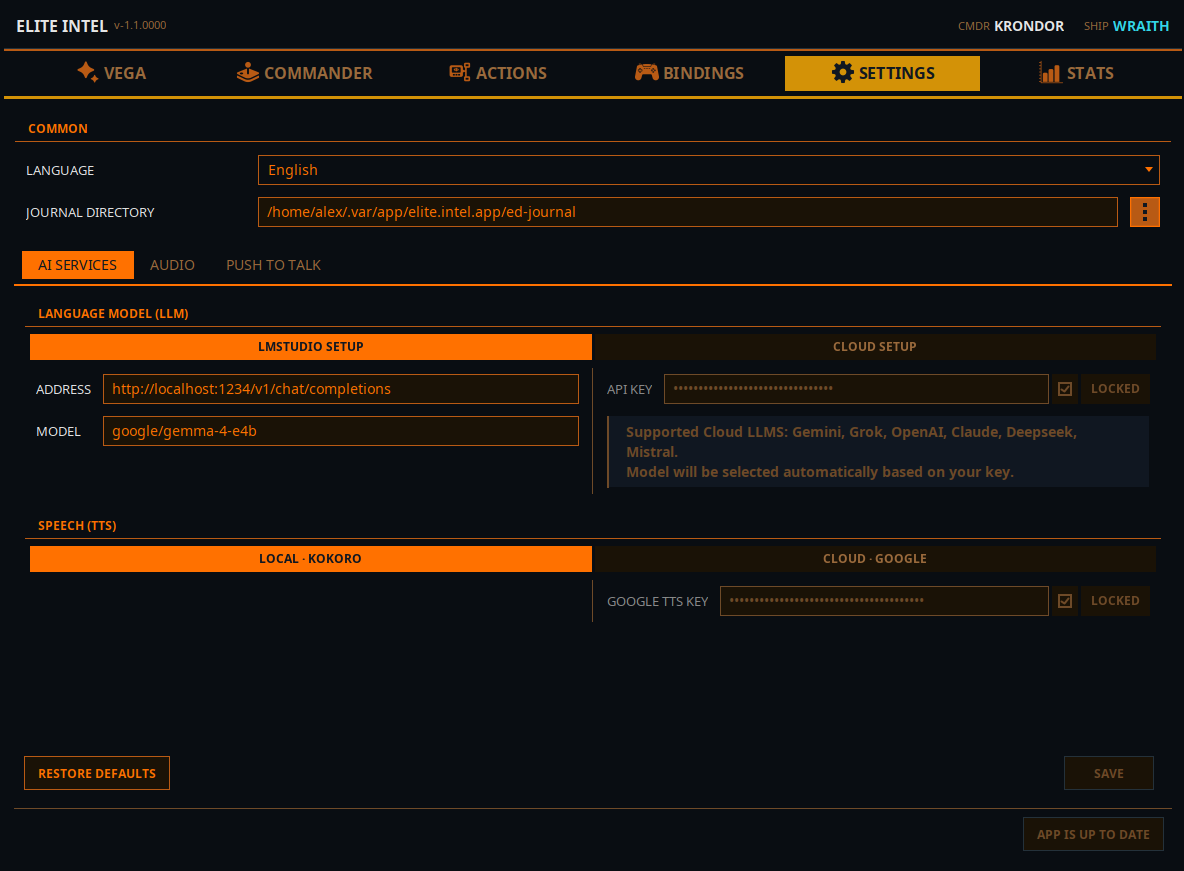
Two switches — one for the language model, one for speech — and the unused side of each is dimmed so it is obvious which one is live.
This is the one tab in the app that works on a draft. Nothing is written until you press Save, and trying to leave with unsaved edits asks you to Save, Discard, or Keep editing.
Language Model (LLM)
Switch between LMStudio Setup (local) and Cloud Setup.
LMStudio Setup
| Field | Notes |
|---|---|
| Address | Defaults to LM Studio's own URL, http://localhost:1234/v1/chat/completions. Point it at another machine's IP if inference runs elsewhere on your LAN |
| Model | The model name. One model serves both commands and queries |
The supported local model is google/gemma-4-e4b. Elite Intel warns you at startup if your
local model is something else; other models may work poorly or not at all.
Setup guides: LM Studio on Linux · LM Studio on Windows · AMD RX series · Headless Ubuntu server
Cloud Setup
| Field | Notes |
|---|---|
| Provider | Pick one: Anthropic (Claude), OpenAI, Google (Gemini), xAI (Grok), DeepSeek, Mistral |
| API Key | Your key for that provider, with a Locked checkbox beside it so a saved key cannot be edited by accident. Uncheck Locked to change it |
You do not pick a model — the right one is selected automatically for your provider.
A key belongs to one provider: picking a different provider empties the key field so you can paste that provider's key, and picking your saved provider again brings its key back, so an accidental click costs nothing. Save stays greyed out until both a provider and a key are filled in.
Mistral has a free tier and is the easiest way to start. See Cloud LLM options for how to obtain a key from each provider.
Speech (TTS)
Switch between Local · Kokoro / Supertonic and Cloud · Google / Edge. Each side has a second switch to pick its engine.
| Engine | Where it runs | Notes |
|---|---|---|
| Kokoro | On your PC | The default. No key, nothing leaves your PC. Cannot pronounce Cyrillic — see below |
| Supertonic 3 | On your PC | Ten voices, every supported language. No key. Has a Supertonic 3 boost (0–100%) slider to raise its output level |
| Google's servers | Google Cloud Text-to-Speech. Needs a Google TTS Key (with the same Locked checkbox). Has a Google WaveNet Pitch slider, used by the WaveNet voices | |
| Microsoft Edge | Microsoft's servers | Microsoft's online Read Aloud voices. No key needed |
Kokoro and Cyrillic. When your game client writes its radio chatter in Russian, the Kokoro segment is greyed out, a banner explains why, and Supertonic 3 speaks instead.
Switching engines resets every ship's voice to the new engine's default voice. Ship personalities are kept. You are asked to confirm before it happens.
Footer
Restore Defaults resets the language model to local LM Studio with the default address and model, and saves immediately. Save commits everything else; it is greyed out until something actually changes, and an Unsaved changes hint appears next to it when it does.
Saving restarts only what it has to — changing the model or key restarts the brain, changing the speech engine or its key restarts the voice. The pitch and boost sliders apply without a restart.
Audio
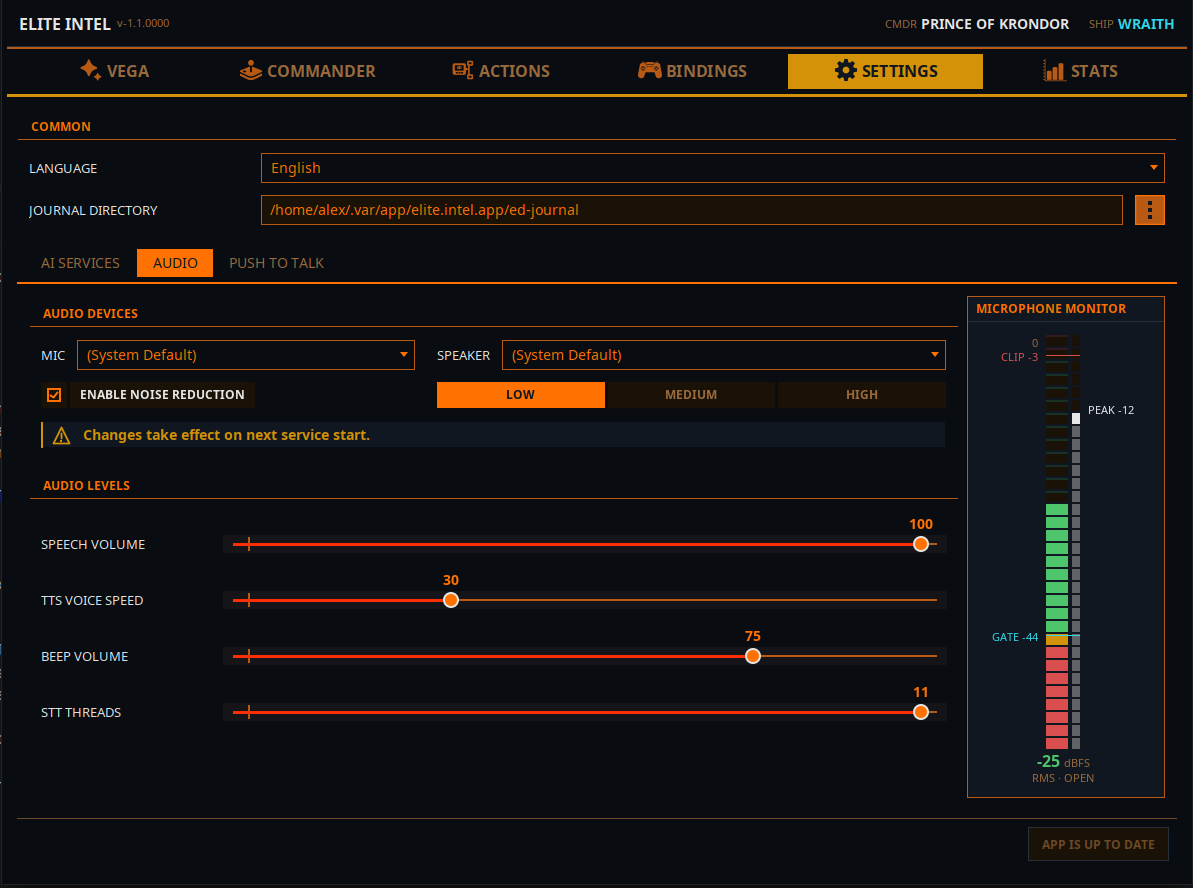
Audio Devices
Mic and Speaker dropdowns, or (System Default). The same pickers are available from the Audio Devices button on the Vega tab. A change applies straight away — only the service that uses the device restarts.
Enable Noise Reduction with a Low / Medium / High strength. Start at Medium. High is for genuinely noisy rooms — it is aggressive, and over-filtering can cost you transcription accuracy.
Below the devices are two tabs.
Audio Levels
| Slider | What it does |
|---|---|
| Speech Volume | How loud Vega speaks |
| Radio Volume | How loud radio transmissions are. Greyed out while radio transmissions are off |
| TTS Voice Speed | How fast Vega speaks |
| Beep Volume | The confirmation beep — it fires when speech-to-text has finished and the language model has your input |
| STT Threads | CPU threads for transcription (4–11). A minimum request, not a reservation: the app asks for this many, uses what the processor gives it, and releases them when the work is done |
Music volume is not here — it lives on the Jukebox tab, so you never turn the wrong one down.
Transmission Audio
How radio messages sound.
| Control | What it does |
|---|---|
| Radio beep at the start and end of each message | Squelch tones around each transmission, with their own volume slider |
| Radio effect | A stronger, degraded radio sound |
| Apply selected effects to radio chat and NPC messages | The tones and radio effect above apply to radio traffic. When off, radio speech keeps its standard filter |
| Apply selected effects to VEGA on foot or in an SRV | Vega sounds like she is on comms when you are away from the ship |
Microphone Monitor
A live meter down the right side. Read it like this:
- FLOOR — your noise level when you are not speaking.
- GATE — the threshold. Audio above the gate is captured for transcription; when it drops below, what was captured is transcribed and sent to the language model.
- CLIP — you are overdriving the microphone. Anything up there transcribes badly.
The status reads OPEN, MARGINAL, CLOSED or HOT (clipping). Under the meter, a plain-language hint appears when something is wrong: Microphone not calibrated, or Microphone too quiet for the room — raise the input level in your operating system's sound settings, then recalibrate. When the microphone is healthy, no hint is shown.
If the meter does not show a clear gap between FLOOR and your speaking level, run CALIBRATE AUDIO on the Vega tab — it sets the gate for you, and warns you if the gap is too small to work with.
Push To Talk
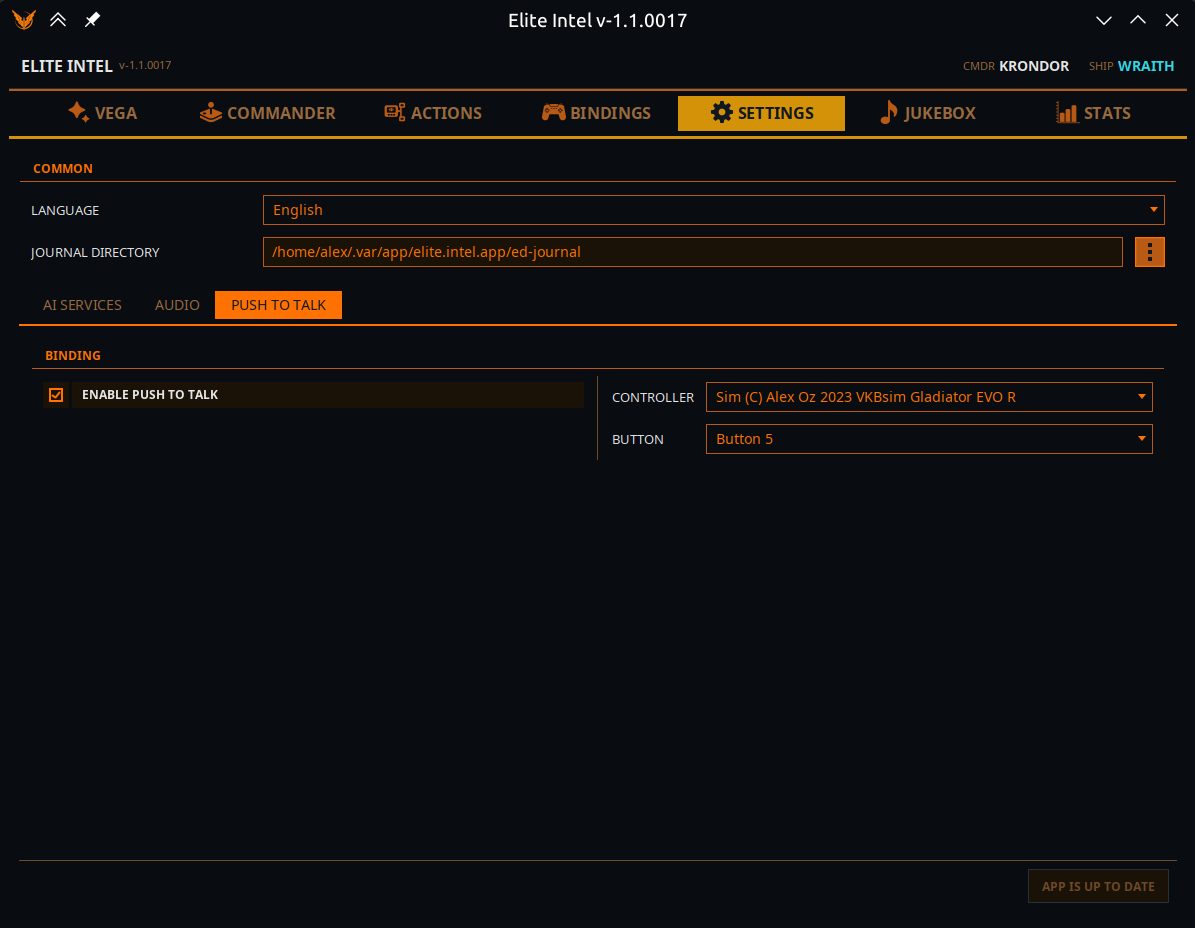
With push-to-talk on, the microphone is closed until you hold a button. Anything it picks up without the button held is thrown away as room noise.
| Control | Notes |
|---|---|
| Enable Push to Talk | The master switch |
| Controller | Any connected game controller or HOTAS. Your saved controller is re-selected automatically when it reconnects |
| Button | Which button on it |
| Mouse button | A second trigger: Middle button, Button 4 (back) or Button 5 (forward). Handy on foot or in the SRV, when your HOTAS is out of reach. Left and right are not offered — they fire your weapons |
Hold the button, speak, release. Pressing it also cuts Vega off mid-sentence, so you never have to wait for her to finish.
While push-to-talk is on, the SLEEP / WAKE UP button on the Vega tab is disabled — the button is the gate. A change here takes effect on the very next press, and the button works whether or not you ever open this tab.
Where the settings live
All settings and data are stored on your PC:
- Linux:
~/.local/share/elite-intel/(or$XDG_DATA_HOME/elite-intel/) - Windows:
%LOCALAPPDATA%\elite-intel\
The database is in db, custom commands in custom-commands (with its own backups), your
on-demand binding snapshots in playerbackups, and the automatic pre-Apply binding copies in
bindings/backups.
Community 👉Matrix👈