Vega Tab
 The default tab, and the one you
leave open while you fly. It starts and stops the AI stack, shows what Vega heard and said,
reports the health of every subsystem, and opens the in-game overlay.
The default tab, and the one you
leave open while you fly. It starts and stops the AI stack, shows what Vega heard and said,
reports the health of every subsystem, and opens the in-game overlay.
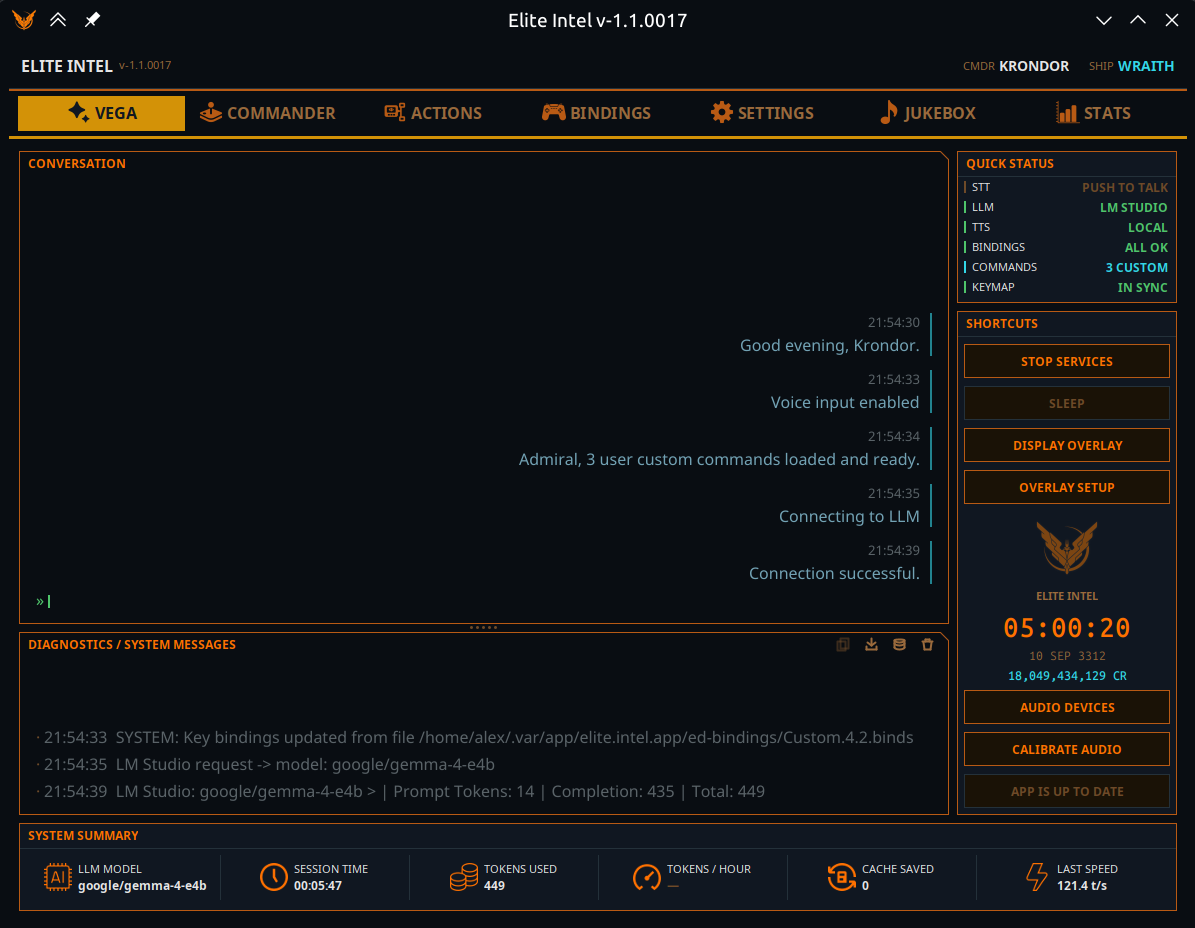
The tab is laid out in four zones: the Conversation and Diagnostics logs down the left, Quick Status and Shortcuts in the right sidebar, and the System Summary telemetry strip along the bottom.
Conversation
Everything you said and everything Vega said back, in one stream. Your lines are aligned left, Vega's replies are aligned right, so a long session stays readable at a glance. Commands you type in the game chat (see All Commands) show up here exactly like spoken ones.
Diagnostics / System Messages
The technical log — service starts, calibration results, binding warnings, what speech
recognition heard (STT: [...]), file operations. It is never spoken; it exists so you can see
what the app is doing.
Four buttons sit in the section header:
| Button | What it does |
|---|---|
| Copy | Copies the text you have selected in the log to the clipboard. |
| Save support bundle | Writes a timestamped .zip for a bug report: this log, the application log, your journal and the game's live status files, your bindings, your custom commands, a hardware summary, and a summary of microphone levels (never audio). Anything it could not collect is listed inside the bundle. This is what to attach to a bug report. |
| Dump Vega's memory | Writes a JSON snapshot of Vega's working memory for the current session. Only works while services are running. |
| Clear | Empties the diagnostics log. |
Quick Status
Six live readouts. Each shows a state and a colour, so a glance tells you whether the stack is healthy.
| Readout | States |
|---|---|
| STT | Standby (services stopped) · Listening · Sleeping (ignoring you) · Push to talk (only the mapped button opens the microphone) |
| LLM | Standby · Offline (could not connect) · the name of the provider that actually answered, or Active |
| TTS | Standby · Local (Kokoro / Supertonic) · Cloud (Google / Microsoft Edge) |
| Bindings | All OK, or N missing |
| Commands | How many custom commands are loaded |
| Keymap | In sync with the game, or Modified — you have an unapplied bindings draft |
The LLM readout is worth watching. It does not report what you configured, it reports which provider actually answered.
Shortcuts
| Button | What it does |
|---|---|
| START / STOP SERVICES | Toggles the whole AI stack. The button disables itself while starting or stopping so it cannot be double-fired. |
| SLEEP / WAKE UP | Awake, Vega listens continuously. Asleep, she ignores everything except a wake phrase (wake up) or a listen-prefixed order — "Listen up, gear down." Disabled while push-to-talk is on: then the mapped button is the gate. |
| DISPLAY / HIDE OVERLAY | Shows the always-on-top HUD overlay. The app remembers which way you left it and restores it on the next launch. If the overlay binary is missing the toggle says so in the log rather than claiming an overlay that is not there. |
| OVERLAY SETUP | Opens HUD overlay settings — transparency, text size, colours, and where it is drawn (monitor, VR headset, both, or a capture window). |
| Audio Devices | Pick your microphone and speaker. A change takes effect straight away: only the speech recognition (microphone) or the voice (speaker) restarts. |
| CALIBRATE AUDIO | Measures your noise floor and speech level and sets the voice gate. Available only while services are running. Run this once before your first flight, and again if you change microphone or room. |
| Update | Appears when a new release is available. |
Between the two button groups sits the commander block — your name, your ship, the clock, and your live credit balance.
System Summary
A six-block telemetry strip along the bottom of the tab:
| Block | Meaning |
|---|---|
| LLM Model | The model that served the most recent request |
| Session Time | Time since services started |
| Tokens Used | Prompt + completion + cached, for the session |
| Tokens / Hour | A projected rate. Stays blank for the first 10 minutes while it collects data |
| Cache Saved | Tokens served from cache. 0 is shown deliberately — it is information, not missing data |
| Last Speed | Tokens per second on the last response |
For the full breakdown, see the Stats tab.
Community 👉Matrix👈