Bindings Tab
 Elite Intel
operates your ship by pressing the keys Elite Dangerous is bound to. If a control has no keyboard
binding, Elite Intel cannot use it — this tab is where you find that out and fix it.
Elite Intel
operates your ship by pressing the keys Elite Dangerous is bound to. If a control has no keyboard
binding, Elite Intel cannot use it — this tab is where you find that out and fix it.
Two sub-tabs: Binding Profile and Binding Management.
Binding Profile
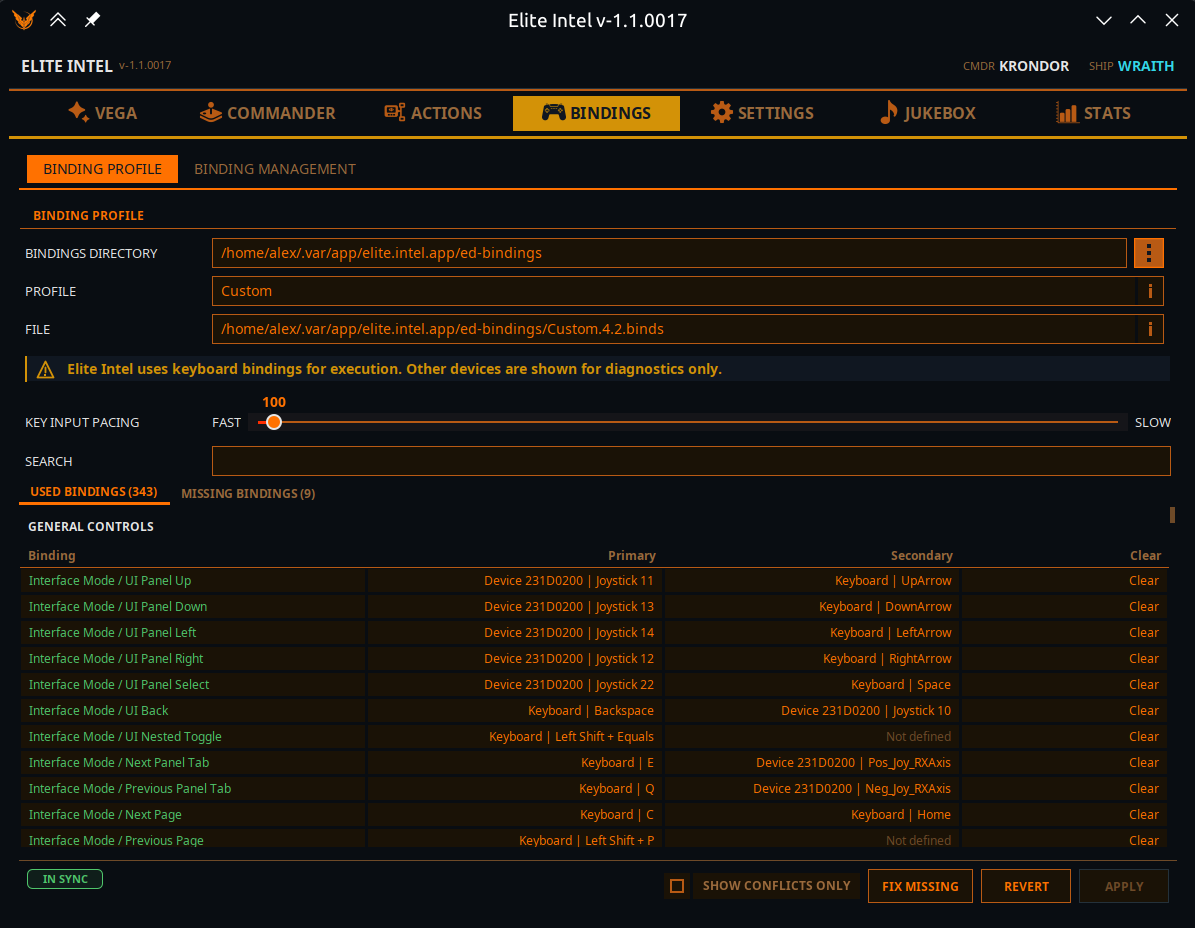
Which file is in use
Bindings Directory — optional. Leave it blank and the standard Elite Dangerous location is used; use the ⋮ picker if your install is somewhere unusual. A folder that cannot be used is refused and the previous setting is kept.
Profile — detected automatically. Elite Intel reads the active StartPreset entry, and
falls back to the newest .binds file if it has to.
File — the .binds file currently being used for diagnostics and assignment.
Profile and File each carry an ⓘ that explains exactly how the value was chosen.
"Cannot find bindings" with the right folder? Elite Dangerous does not write a
.bindsfile until you customise something. Open Options → Controls in the game, change any binding, and Elite Intel picks the file up.
Key Input Pacing
A Fast ↔ Slow slider for the pause Elite Intel holds after each keystroke it sends to the game. Fast is the default. If the game drops keystrokes out of a sequence on slower hardware — a macro that only half-runs, a panel that opens on the wrong tab — move it towards Slow.
The binding tables
Two tabs: Used bindings and Missing bindings, each with a count. Rows are grouped under the game's own headings — General controls, Ship controls, SRV controls, On-foot controls, Other controls — in the same order as the game's Controls screen, so you can read the two side by side.
Search narrows both tables as you type. It matches the section, group, control name and the
raw .binds tag. Show conflicts only filters the tables to the problems.
| Column | Meaning |
|---|---|
| Binding | The control |
| Primary / Secondary | The two slots Elite Dangerous gives every control |
| Status | Missing · No keyboard (bound, but only to a controller) · Not defined |
| Quick fix | Missing tab: assigns a safe free keyboard key to this one control |
| Clear | Used tab: removes the keyboard binding (Primary, Secondary or both), leaving controller and HOTAS bindings untouched |
HOTAS and controllers are shown but not editable. Elite Intel executes through keyboard bindings, so other devices appear for diagnostics only.
Conflicts
Elite Dangerous treats a chord as conflicting only when it is exactly the same chord — G
and Shift+G coexist happily. Elite Intel uses the same rule, so it flags what the game
actually flags.
Conflicting rows are coloured red, and hovering one shows Shares key with: and the list — for every slot that is in conflict, not just the first.
You may also see Ship/SRV twin — many bind it the same as: on a cyan row. That is not a conflict, it is a suggestion: some ship and SRV controls are conventionally bound to the same key.
Vega also speaks about bindings that will actually break things, and names the keys in the diagnostics log:
- Galaxy map movement and interface navigation on the same key. Route plotting cannot work until the map and the interface have separate keys.
- A control on your game-menu key. Elite opens the game menu on any combination ending in that key, so the control can never be pressed. The fix is to clear the game-menu binding in the game — Escape opens that menu anyway.
- A control on a combination the operating system takes first (such as Alt+F4). Pressing it closes the game or leaves your session.
Editing a binding
Click a slot to open the assignment dialog.
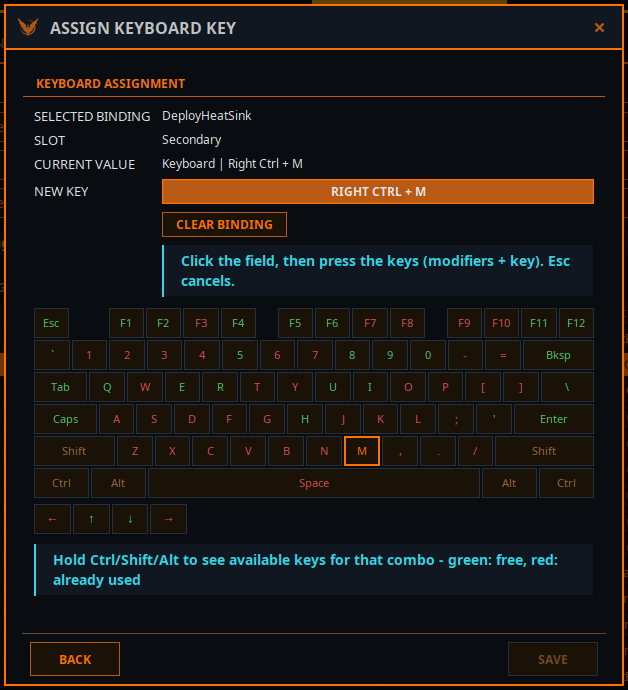
It shows the selected binding, the slot, and the current value. Then click the field and press the keys you want — modifiers and key together. Esc cancels. Chords with up to three modifiers are supported.
A live keyboard map shows what is available: hold Ctrl/Shift/Alt to see the keys free for that combination — green is free, red is already used. Reserved keys (the game-menu key, Alt+F4, Linux Ctrl+Alt+F-keys) are marked and cannot be assigned.
Clear binding removes the assignment.
Auto-Assign Missing Binds
One button that assigns safe, layout-friendly keyboard keys to every control that has no keyboard binding.
- Existing bindings are never changed.
- No key is ever reused.
- The changes go into your draft only — review them, then Apply.
It reports what it did, and what it skipped and why: both slots already on a controller, no free safe key left, or no slot that could be edited safely. Two controls are left unbound on purpose: the game menu (Escape already opens it), and eject all cargo (it empties the hold into space and no Elite Intel command presses it — bind it by hand if you want it).
Draft, Apply, Revert
Edits do not go straight to Elite Dangerous. They accumulate in a draft, and the badge shows Draft or In sync. The same state appears on the Vega tab's Keymap readout.
| Button | What it does |
|---|---|
| Apply | Writes the draft to your .binds file, saving a copy of the old one first |
| Revert | Throws the draft away and reloads from the game file |
After applying, open and then close the Controls screen in Elite Dangerous. The game only re-reads its bindings when that screen is opened. Vega says this out loud too.
If the game's binding file changed after your draft was created, Apply refuses and asks you to reload or discard first, rather than silently overwriting someone else's edit.
Close the app with an unapplied draft and you are asked whether to Apply to Game, Keep Draft, or Discard.
Binding Management
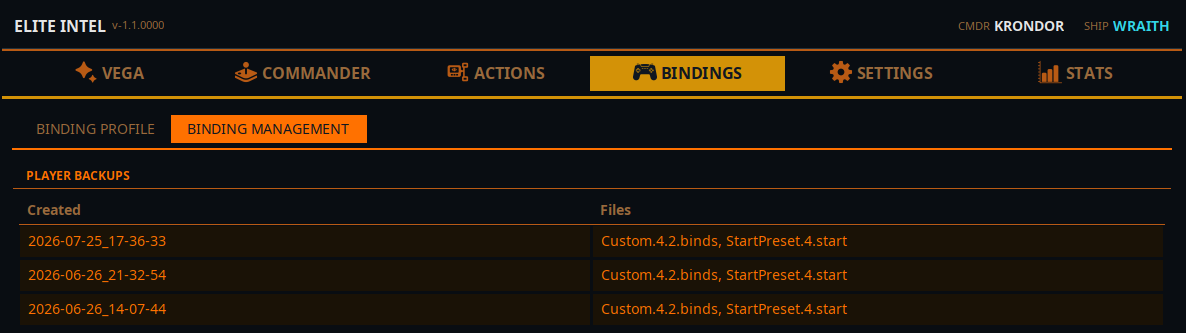
Player Backups — snapshots you take yourself with Backup Now, listed by Created date and the Files each contains. Take one before you start experimenting.
(Separately, every Apply quietly saves a copy of the game file first, to
elite-intel/bindings/backups/. Those are a safety net and are not listed here.)
| Button | What it does |
|---|---|
| Restore to Editing Slot | Loads the backup into your draft, so you can review it before it touches the game |
| Restore to Live | Loads it and applies it to the game directly. The usual safe-apply checks still run |
| Delete Backup | Deletes the backup permanently |
Every one of these asks first. Both restores replace unsaved changes in the current draft.
Community 👉Matrix👈