 Settings / Local LLM Tab
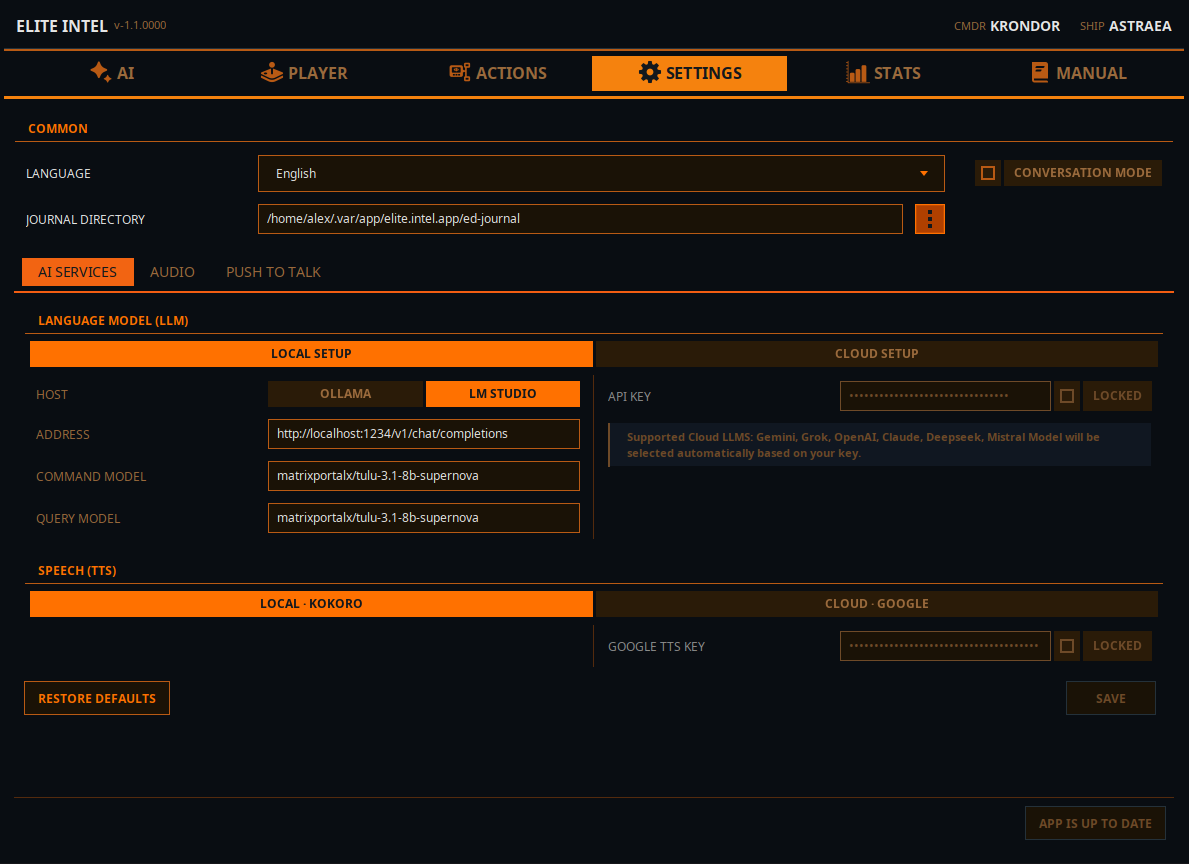
Language
- Select your language. Supported languages are English, Spanish, French, German, Ukrainian and Russian.
Conversation Mode (on/off)
- "Conversation Mode" allows you to have a chat with LLM. When off (default) the LLM runs in strict command mode. It will only parse commands and perform queries and actions, but will ignore all non sensical input.
Journal Directory
- Location of your game journal directory. This is how Elite Intel knows your game session.
LLM Options
Local LLM
- Choose an inference engine host. Ollama or LMStudio (faster option)
- In the ADDRESS field, enter the address of your inference server. Either local host if you run it on the same machine or an IP address of the computer on your local area network. Provide port number, and URI for the API endpoint
- Enter the name of the model in the Command Model field. This will be the model used for user input classification
- Enter the name of the model in the Query Model field. This will be the model usd for queries and natural language response
- NOTE: You can use the same model for both. Especially if you do not have hardware to run more than one model
Cloud LLM
If you do not have hardware to run a local LLM you can use a cloud instance instead.
- Mistral Console has a free tear and easy to setup
- Alternatively, you can use Claude, Gemini, Grok (xAi), Open AI or DeepSeek. Login to the api console of your LLM provider of choise and create an API key.
- Enter the key in to the API key field, lock the field and click "use" to let the app know you are using a cloud LLM.
- Restart the services on the front tab for the changes to take effect.
NOTE 👉 See more on cloud LLMs here 👈
 Settings / Audio
Configure your audio settings
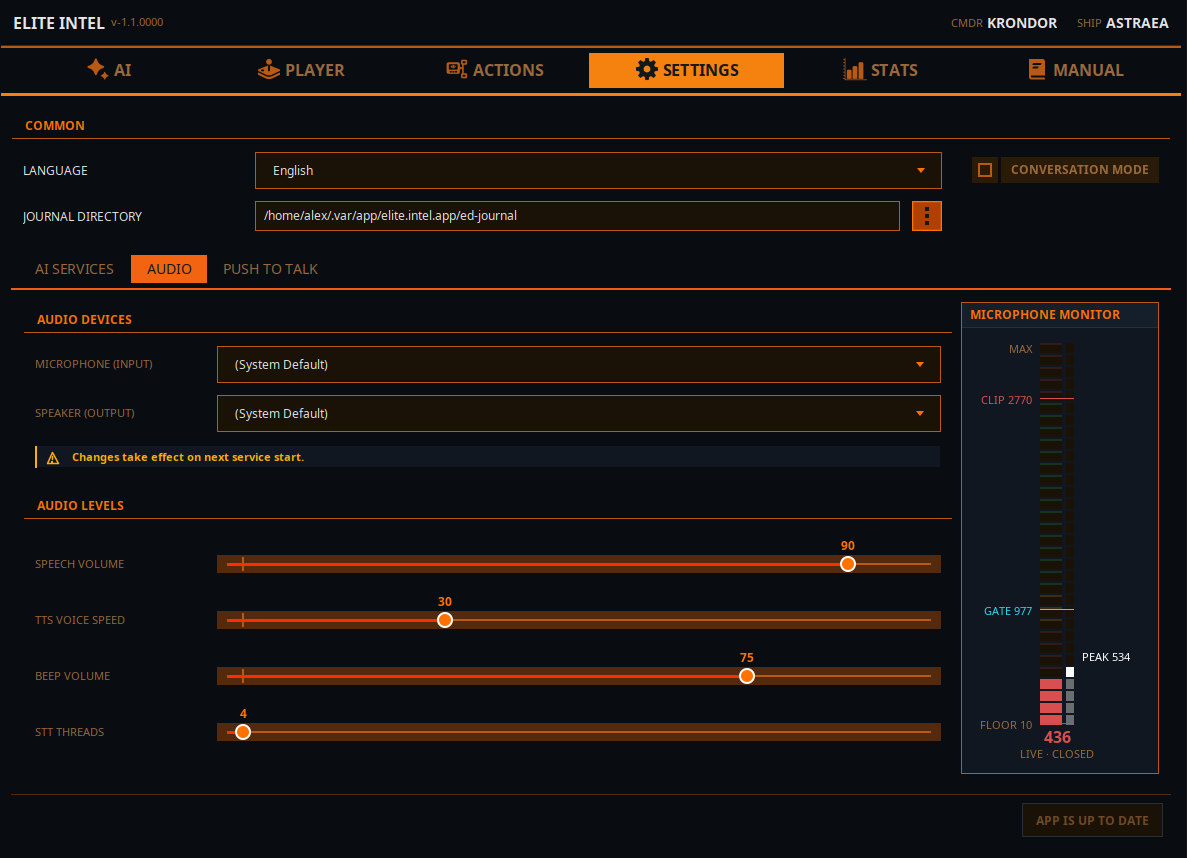
Microphone and Speakers drop downs let you select the audio in and out lines. The change will take effect when you restart the services on the front tab.
Speech Volume: Controls the volume of speech synthesis.
TTS Voice Speed: Controls the speed of speech synthesis.
Beep Volume: Controls the volume of the beep indicator. Indicates that STT has finished processing and the LLM has received input.
STT Threads: Sets the thread allocation for STT processing. This is a min/max setting. The app requests the minimum but uses what the processor provides. Threads are released after processing completes.
Microphone Monitor
FLOOR level (the noise level when you are not speaking),
GATE level, indicates the audio gate level. When audio is above the gate, the data is sent to for to Parakeet for transcription. When audio drops below the gate level the audio received is transcribed to text and sent to LLM for classification
CLIP indicates you are melting the mic if your input goes above that line. If it does the transcription will be inaccurate.
 Settings / Push To Talk
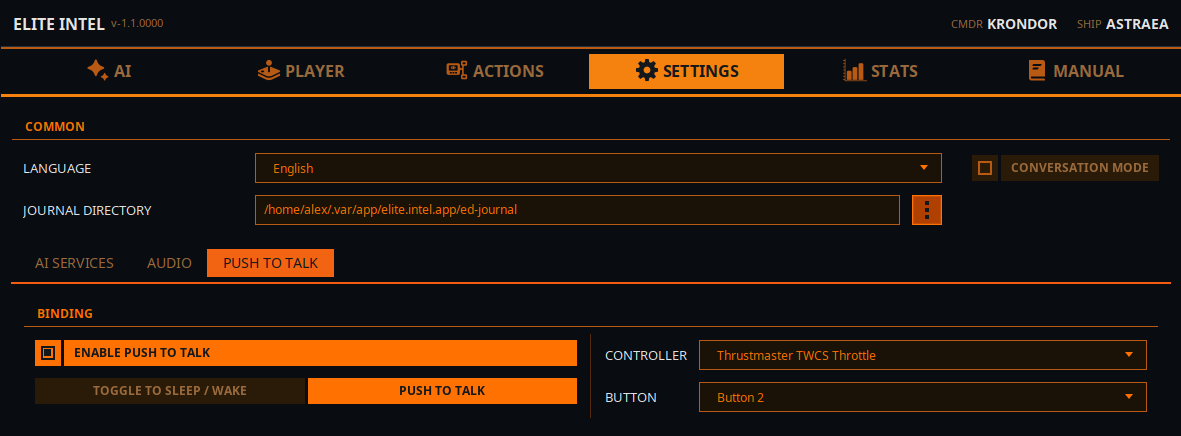
Configure PTT (Push To Talk)
Push To Talk only works with a controller, not a keyboard. Yes, you would have to sacrifice a button on your controller, but you gain access to over 200 commands/queries.
PTT Settings have two modes.
- Toggle Sleep/Wake This option simply switches the app between Sleep and Wake mode. In Sleep mode the app will ignore all your voice input except "Wake Up!" command. The "listen" or "listen up" bypass word will bypass the sleep mode. "Listen up!, Lower the landing gear." will go though
- PTT Mode In pure Push To Talk mode the app is "sleeping" ignoring all your input. When PTT button on the controller is pressed and held you will hear a beep, say your command, or query and release the button. You will hear another beep indicating that your input is being processed.
 Settings / Statistics
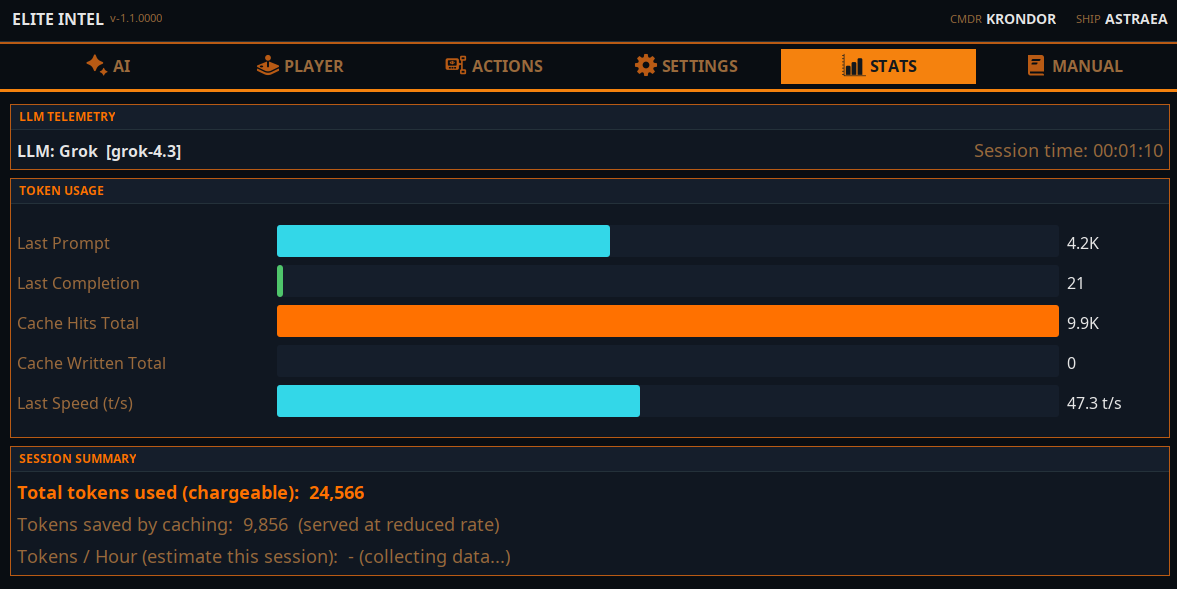
The statistics tab shows you your token usage. Tokens are basic units of LLM compute. A token is a single word or number.
Cloud model integration is tuned per-provider for maximum token caching. Cached tokens are either free or billed at a lower rate. This depends on the provider. On Average the app uses around 250k tokens per hour total. Some cloud providers can cache up to 80% of it, others around 40%. It depends on the cloud you choose.
The estimate will be shown based on your usage once you run your session for longer than 15 minutes. It is an approximate calculation.
Local LLM does not display cached tokens. That information is not relevant to local LLM.